How to Take Notes in a Meeting (Plus a Sheets Tracker)
Summary
To take notes in a meeting, capture only decisions, action items with an owner and a due date, open questions, and any numbers quoted. Pick a structure beforehand, such as the Quadrant or Outline method, and skip the transcript. Then log action items as rows in a Google Sheets or Excel tracker with a status dropdown and an overdue rule, so follow-up happens without chasing anyone.
How to take notes in a meeting? Write down only three things: decisions, action items with an owner and a date, and open questions. Everything else is noise. Skip the transcript, keep a simple structure, and put the action items in a sheet you will actually open again on Monday. Biscuit fetches the formulas, but the habit is yours.
This guide covers the note-taking methods that hold up in real meetings, then shows a Google Sheets and Excel setup that turns scribbles into a tracker that nags you politely.
Why most meeting notes end up in a drawer
You have been there. Ninety minutes of typing, a wall of text, and two days later nobody can say who promised what.
The problem is rarely speed. It is structure. Notes written as a stream of sentences cannot be filtered, sorted, or counted. Notes written as rows can.
That is where a tableur earns its place. A meeting is a small database: people, dates, decisions, tasks. Treat it that way and the follow-up almost does itself.
Pick a method before the meeting starts, not during
Most guides list five or six methods. In practice you need to choose based on the meeting type. Here is the short version.
Outline: best for agenda-driven meetings and linear discussion. Falls apart in brainstorms.
Cornell: best for training sessions and long briefings. Needs time after the meeting.
Box: best for several distinct topics, each with its own owner. Hard to keep up when people talk over each other.
Quadrant: best for project meetings with lots of tasks. Four zones to watch at once.
Slide annotation: best for presentations where the deck is shared beforehand. Useless without a deck.
The Fellow breakdown of meeting note-taking methods describes each one in detail if you want the long version.
Our opinion: for 80 percent of work meetings, the Quadrant method wins. General notes, your action items, other people's action items, questions. Four buckets, and the two task buckets map directly onto spreadsheet columns.
Skip Cornell unless you are a student. Nobody at work has ten minutes after a meeting to fill in the summary box, and an empty summary box is worse than no box.

What to write down (and what to leave out)
Before the call, spend two minutes on the header. It is boring and it saves you later.
Date, meeting title, attendees
The agenda, copied into your notes as headings
One sentence on the goal: "Decide the Q4 budget split", not "Discuss budget"
During the call, capture four kinds of lines and nothing else:
Decisions. What was agreed, in past tense. "Launch moves to 14 November."
Action items. Verb, owner, deadline. "Priya sends the revised quote by Friday."
Open questions. Things nobody could answer. These become the next agenda.
Numbers. Any figure someone quotes. Memory is terrible with numbers.
Leave out the small talk, the repeated arguments, and the "let me share my screen" minutes. If you catch yourself typing a full sentence someone said, stop and write the conclusion instead.
Typing versus handwriting? Both work. Pick the one that lets you listen. If you type fast enough to transcribe, you are probably not thinking.
One person writes, everyone reads
If you run the meeting, do not also take the notes. Hand the job to someone, and rotate it weekly. The notetaker owns the page until the follow-up email is sent.
Put the notes in a shared Google Sheet during the call so everyone sees the action items appear in real time. People correct their own deadlines on the spot. That alone removes half of the "I never agreed to that" conversations.
The Sheets setup: a meeting log that follows up for you
Here is the sheet we would build. Two tabs.
Tab 1, "Log": one row per action item, across all meetings.
Columns: A Date, B Meeting, C Item, D Owner, E Due, F Status.
Tab 2, "Dashboard": counts and a list of what is late.
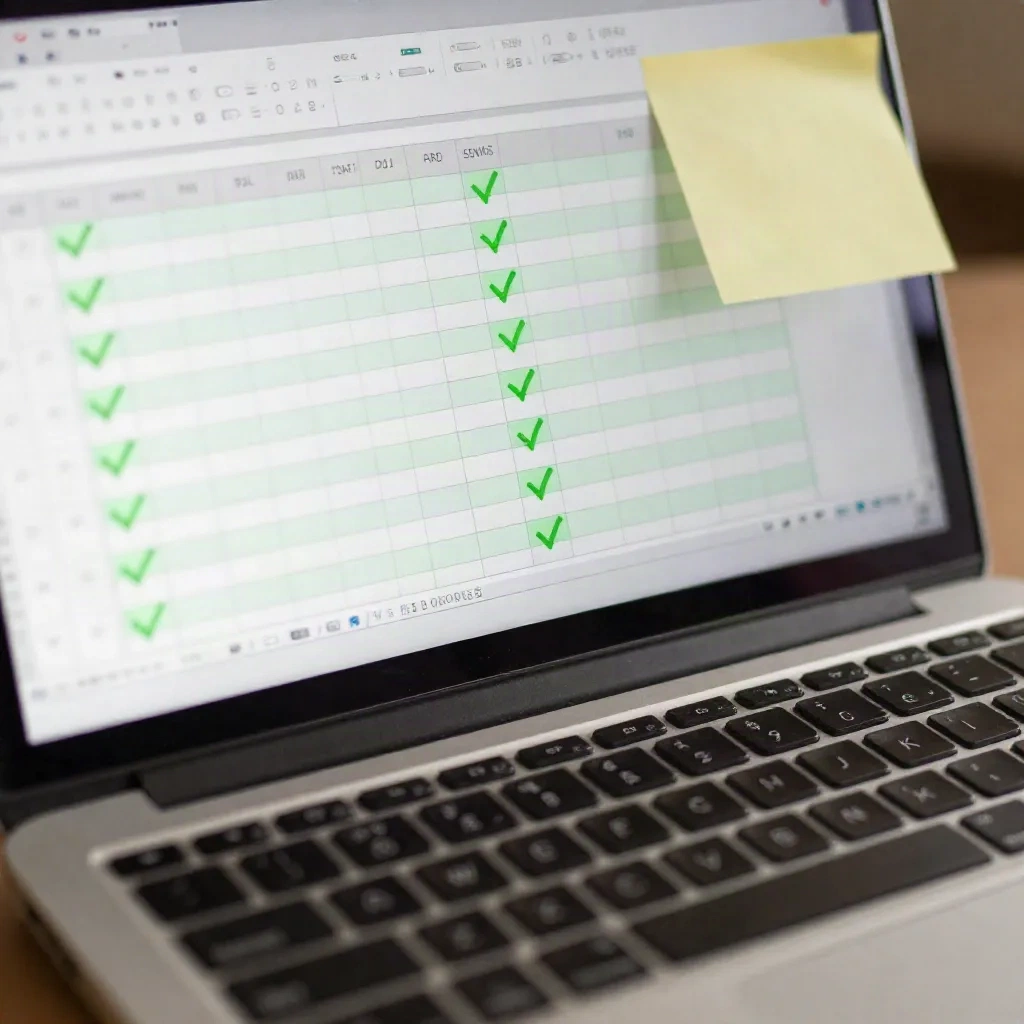
Set column F with a dropdown (Data > Data validation > Dropdown) containing Open, Doing, Done. Here is what it looks like in a real cell: a clean status you can count.
Flag overdue items automatically
Select E2:E500, then Format > Conditional formatting > Custom formula is. Paste this (works in both Google Sheets and Excel, with the rule set up through the equivalent menu):
=AND($E2<TODAY(), $F2<>"Done", $E2<>"")$E2<TODAY(): the due date is before today.$F2<>"Done": the item is not finished.$E2<>"": ignore empty rows, otherwise your whole blank area turns red.
Set the fill to a soft red. Done items stay quiet, late items shout. Good boy.
Count open items per person
On the Dashboard tab, list owners in A2:A10 and put this in B2:
=COUNTIFS(Log!$D:$D, A2, Log!$F:$F, "<>Done", Log!$C:$C, "<>")Log!$D:$D: the plage of owners.A2: the valeur_cherchée, one name at a time.Log!$F:$F, "<>Done": skip finished work.Log!$C:$C, "<>": skip rows with no item text.
Works in Excel 2007 and later, and in Google Sheets. Drag it down for each owner.
Pull only this week's late items (Sheets only)
This one uses FILTER, which exists in Google Sheets and in Excel 365 and 2021, but not in Excel 2016. If you are on 2016, use the conditional formatting above plus a manual filter.
=FILTER(Log!A2:F, Log!E2:E < TODAY(), Log!F2:F <> "Done", Log!E2:E <> "")Log!A2:F: the columns to return (Sheets accepts open-ended ranges, Excel wants a fixed range likeA2:F500).Each following pair is a condition. All must be true.
Put it in cell A2 of the Dashboard and the overdue list rebuilds itself every morning. If your table changes shape tomorrow, this formula follows.
One warning: FILTER returns #N/A when nothing matches. Wrap it so your dashboard says something friendly instead:
=IFERROR(FILTER(Log!A2:F, Log!E2:E < TODAY(), Log!F2:F <> "Done", Log!E2:E <> ""), "Nothing late. Enjoy the quiet.")Days until due
In column G of the Log, add a quick countdown:
=IF(OR(E2="", F2="Done"), "", E2-TODAY())E2="": no due date, show nothing.F2="Done": finished, show nothing.Otherwise, the number of days left. Negative means late.
Format the column as a number, not a date. If you see something like 45123, the cell is formatted as a date. Switch it to plain number.
If you want a ready-made layout instead of building your own, the Vertex42 action item tracker is a decent free starting point, with checkboxes that cross out finished tasks. Check the license on the download page before sharing it around.
Paste your notes in, split them with one formula
Here is a trick for people who take notes as plain text lines in the form "Priya | Send revised quote | Friday". Paste the lines into column A of a scratch tab, then split them.
In Google Sheets:
=SPLIT(A2, "|")A2: the cell with the line."|": the separator.
Sheets spills the three pieces across B2:D2. In Excel 365, TEXTSPLIT(A2, "|") does the same job. In older Excel, use Data > Text to Columns with the same separator.
Trim stray spaces afterwards with =TRIM(B2). Names with a trailing space break COUNTIFS silently, and Biscuit comes back empty-handed.
A template for recurring meetings
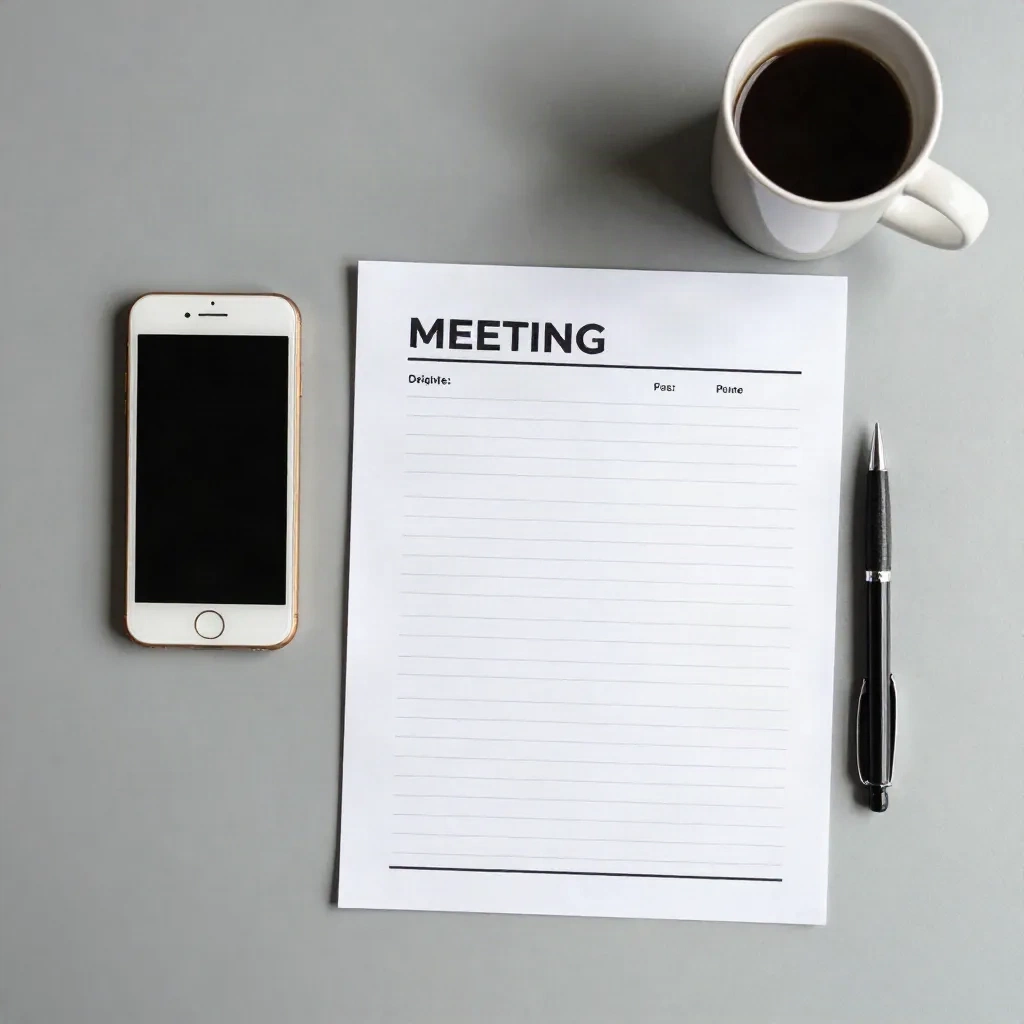
For weekly meetings, create one tab per meeting from a single master. The structure we use:
Header block: date, attendees, goal (rows 1 to 4).
Agenda: one row per topic, with a time budget in minutes.
Decisions: a short list, past tense.
Action items: the table above, or a link to the global Log.
Parking lot: questions for next time.
Add a time budget column and a total at the bottom:
=SUM(C6:C12)If the total is more than the meeting length, you already know which topic will get cut. Better to find out on Monday than at minute 58.
The Spreadsheet Daddy meeting minutes template is another free option if you want something to adapt rather than build.
Should you let an AI notetaker do it?
Tools like Otter, Fireflies and Notion's meeting features now join calls and produce transcripts and summaries. They are good at one thing: nobody has to type.
They are weaker at judgment. A summary will happily list the three jokes and miss the one decision that mattered. And an auto-generated action item with no owner is just a nicer-looking mistake.
Our take: use a recorder as a safety net, not as the notetaker. Keep your own four-line structure, then check it against the transcript. Ask the AI for action items, then paste them into your Log and fill in owner and deadline yourself.
Check your company policy and ask people before you record. Some countries require explicit consent from everyone on the call.
The five-minute follow-up that makes it stick
The notes only matter if people see them. After the meeting:
Send the notes within an hour, while memory is fresh. Same day at the latest.
Lead with decisions and action items. Put context below.
Share a link to the sheet, not a pasted copy, so statuses stay current.
Open the Dashboard at the start of the next meeting and start there, not with small talk.
That last step is the whole system. Reviewing last week's open items for two minutes is what turns notes into accountability.
Common mistakes, fixed
Notes with no owner. "We should update the pricing page" is a wish. Add a name or delete the line.
Vague deadlines. "Soon" and "next week" are not dates. Write the actual date.
Everything in one cell. Merged cells and paragraphs inside a cell kill sorting and filtering. One item per row.
Free-text statuses. "In progress", "doing", "WIP" are the same thing counted three ways. Use a dropdown.
Date typed as text. If
=E2-TODAY()returns#VALUE!, the date is stored as text. Retype it or use=DATEVALUE(E2).
What we would actually do
If you only change one thing, change this: write action items as rows with an owner and a date, in a sheet everyone can open. Start with the Log tab and the overdue rule. That is ten minutes of setup and it pays back at the very next meeting.
Add the dashboard when you have a few weeks of data. Add automation only when the manual version annoys you.
And if you would rather not remember FILTER or COUNTIFS syntax at all, Biscuit will write them from a plain-language description. Tell him what you want to count, and he fetches the formula.